RPGenie
Table of Content
Setting Up
RPGenie can only add quests and tasks into your LiFE RPG system if you connect it properly with your Notion workspace. Follow the steps below carefully, one by one.
Connect RPGenie to LiFE RPG
Step 1: Create an RPGenie Account
Open https://rpgenie.liferpg.site and choose Create account.
Use the email on your LiFE RPG purchase. If you already have an account, choose Log in instead.
If RPGenie says it cannot match the email to a purchase, and you bought LiFE RPG a moment ago, wait a couple of minutes and try again.

Step 2: Connect Notion
After you are in, open Settings.
Under Notion section, click Connect Notion.

Notion will ask you to pick the workspace where your LiFE RPG system is stored. Share the LiFE RPG page with RPGenie, then allow access.

You will come back to Settings. Wait while it says "Waiting for Notion to finish sharing." This can take about 30 seconds. Do not refresh and start over.

Step 3: Choose the database
LiFE RPG contains a lot of databases, so do not scroll through the list looking for the right one. Search instead.
If you are a new user
In the database search, type: choose this
You will see two results: one for empty data, and one for sample data.
Pick the one that matches the environment you are actually using. If you started with sample data, select the sample data database. If you started with an empty template, select the empty one.
When the database is ready, the connection worked.

If you already use LiFE RPG
Your database name probably does not include "choose this" yet. Add it first, so you can find it later.
Open the template you are using. For example, sample data. Then open the RPGenie page.
In the Quest section, click Today. Then click Open Source Database.
That opens the database old users already have. Add "choose this" to its name.

Then go back to RPGenie and search: choose this
Select that database. When it says the database is ready, you are connected.
This label is only there so you can find the right database among hundreds of others. It does not change how quests work.
Note: If you are an existing user, you can remove the Settings module from the RPGenie page in Notion. RPGenie no longer uses a user key to connect.

If no database appears
If Settings says "No shared databases," Notion did not share the page yet.
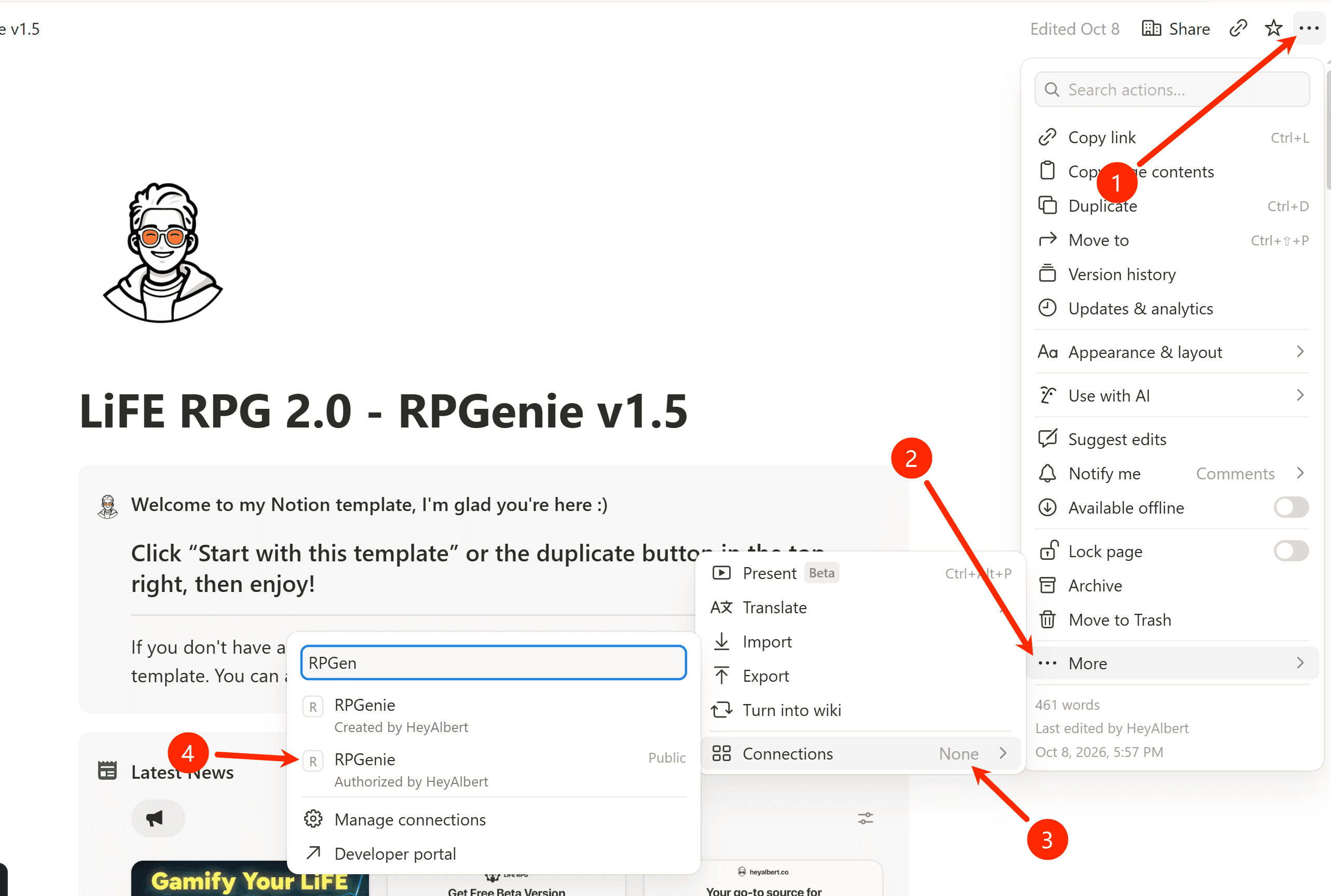
Go back to your LiFE RPG page in Notion. Open Share, then Connections, and add RPGenie. Come back to Settings and click Refresh.
Request a quest from an NPC in Notion
This part is only for Notion Pro plan users. It makes the Request Now button on an NPC card work.
If you are not on Notion Pro, skip this section. You can still create an NPC in RPGenie, click Request now there, or set a time so it assigns you a quest on a schedule. For example, every day at 9 a.m.
Step 1: Create your link
Open Settings.
Click Create URL. Copy the link. RPGenie shows it only once. If you lose it, create a new one and use that. The old link will stop working.

Step 2: Replace the link on an NPC
Go back to your Notion page.
Click any NPC card.
Click Edit Property, then Edit Automation.

Replace the URL there with the one you just copied.

Step 3: Request a quest
Wait about 10 seconds. Then click Request Now.

The quest from that NPC will appear in the Quest section.

After you are connected
Open NPCs and add at least one NPC. Give it a name, a role, a goal, a language, and a time.
You can then:
Click Request now, and the quest appears in your LiFE RPG database
Leave the schedule on, and RPGenie sends daily, weekly, or monthly quests
Use Value Recommendation, which is saved to the same database
Skip the Notion button, and still use everything above
RPGenie can only add quests and tasks into your LiFE RPG system if you connect it properly with your Notion workspace. Follow the steps below carefully, one by one.
Connect RPGenie to LiFE RPG
Step 1: Create an RPGenie Account
Open https://rpgenie.liferpg.site and choose Create account.
Use the email on your LiFE RPG purchase. If you already have an account, choose Log in instead.
If RPGenie says it cannot match the email to a purchase, and you bought LiFE RPG a moment ago, wait a couple of minutes and try again.
Step 2: Connect Notion
After you are in, open Settings.
Under Notion section, click Connect Notion.
Notion will ask you to pick the workspace where your LiFE RPG system is stored. Share the LiFE RPG page with RPGenie, then allow access.
You will come back to Settings. Wait while it says "Waiting for Notion to finish sharing." This can take about 30 seconds. Do not refresh and start over.
Step 3: Choose the database
LiFE RPG contains a lot of databases, so do not scroll through the list looking for the right one. Search instead.
If you are a new user
In the database search, type: choose this
You will see two results: one for empty data, and one for sample data.
Pick the one that matches the environment you are actually using. If you started with sample data, select the sample data database. If you started with an empty template, select the empty one.
When the database is ready, the connection worked.
If you already use LiFE RPG
Your database name probably does not include "choose this" yet. Add it first, so you can find it later.
Open the template you are using. For example, sample data. Then open the RPGenie page.
In the Quest section, click Today. Then click Open Source Database.
That opens the database old users already have. Add "choose this" to its name.
Then go back to RPGenie and search: choose this
Select that database. When it says the database is ready, you are connected.
This label is only there so you can find the right database among hundreds of others. It does not change how quests work.
Note: If you are an existing user, you can remove the Settings module from the RPGenie page in Notion. RPGenie no longer uses a user key to connect.
If no database appears
If Settings says "No shared databases," Notion did not share the page yet.
Go back to your LiFE RPG page in Notion. Open Share, then Connections, and add RPGenie. Come back to Settings and click Refresh.
Request a quest from an NPC in Notion
This part is only for Notion Pro plan users. It makes the Request Now button on an NPC card work.
If you are not on Notion Pro, skip this section. You can still create an NPC in RPGenie, click Request now there, or set a time so it assigns you a quest on a schedule. For example, every day at 9 a.m.
Step 1: Create your link
Open Settings.
Click Create URL. Copy the link. RPGenie shows it only once. If you lose it, create a new one and use that. The old link will stop working.
Step 2: Replace the link on an NPC
Go back to your Notion page.
Click any NPC card.
Click Edit Property, then Edit Automation.
Replace the URL there with the one you just copied.
Step 3: Request a quest
Wait about 10 seconds. Then click Request Now.
The quest from that NPC will appear in the Quest section.
After you are connected
Open NPCs and add at least one NPC. Give it a name, a role, a goal, a language, and a time.
You can then:
Click Request now, and the quest appears in your LiFE RPG database
Leave the schedule on, and RPGenie sends daily, weekly, or monthly quests
Use Value Recommendation, which is saved to the same database
Skip the Notion button, and still use everything above
RPGenie can only add quests and tasks into your LiFE RPG system if you connect it properly with your Notion workspace. Follow the steps below carefully, one by one.
Connect RPGenie to LiFE RPG
Step 1: Create an RPGenie Account
Open https://rpgenie.liferpg.site and choose Create account.
Use the email on your LiFE RPG purchase. If you already have an account, choose Log in instead.
If RPGenie says it cannot match the email to a purchase, and you bought LiFE RPG a moment ago, wait a couple of minutes and try again.
Step 2: Connect Notion
After you are in, open Settings.
Under Notion section, click Connect Notion.
Notion will ask you to pick the workspace where your LiFE RPG system is stored. Share the LiFE RPG page with RPGenie, then allow access.
You will come back to Settings. Wait while it says "Waiting for Notion to finish sharing." This can take about 30 seconds. Do not refresh and start over.
Step 3: Choose the database
LiFE RPG contains a lot of databases, so do not scroll through the list looking for the right one. Search instead.
If you are a new user
In the database search, type: choose this
You will see two results: one for empty data, and one for sample data.
Pick the one that matches the environment you are actually using. If you started with sample data, select the sample data database. If you started with an empty template, select the empty one.
When the database is ready, the connection worked.
If you already use LiFE RPG
Your database name probably does not include "choose this" yet. Add it first, so you can find it later.
Open the template you are using. For example, sample data. Then open the RPGenie page.
In the Quest section, click Today. Then click Open Source Database.
That opens the database old users already have. Add "choose this" to its name.
Then go back to RPGenie and search: choose this
Select that database. When it says the database is ready, you are connected.
This label is only there so you can find the right database among hundreds of others. It does not change how quests work.
Note: If you are an existing user, you can remove the Settings module from the RPGenie page in Notion. RPGenie no longer uses a user key to connect.
If no database appears
If Settings says "No shared databases," Notion did not share the page yet.
Go back to your LiFE RPG page in Notion. Open Share, then Connections, and add RPGenie. Come back to Settings and click Refresh.
Request a quest from an NPC in Notion
This part is only for Notion Pro plan users. It makes the Request Now button on an NPC card work.
If you are not on Notion Pro, skip this section. You can still create an NPC in RPGenie, click Request now there, or set a time so it assigns you a quest on a schedule. For example, every day at 9 a.m.
Step 1: Create your link
Open Settings.
Click Create URL. Copy the link. RPGenie shows it only once. If you lose it, create a new one and use that. The old link will stop working.
Step 2: Replace the link on an NPC
Go back to your Notion page.
Click any NPC card.
Click Edit Property, then Edit Automation.
Replace the URL there with the one you just copied.
Step 3: Request a quest
Wait about 10 seconds. Then click Request Now.
The quest from that NPC will appear in the Quest section.
After you are connected
Open NPCs and add at least one NPC. Give it a name, a role, a goal, a language, and a time.
You can then:
Click Request now, and the quest appears in your LiFE RPG database
Leave the schedule on, and RPGenie sends daily, weekly, or monthly quests
Use Value Recommendation, which is saved to the same database
Skip the Notion button, and still use everything above